Events
Events are the points on the timeline: what happened, when and who was involved.
Open an event
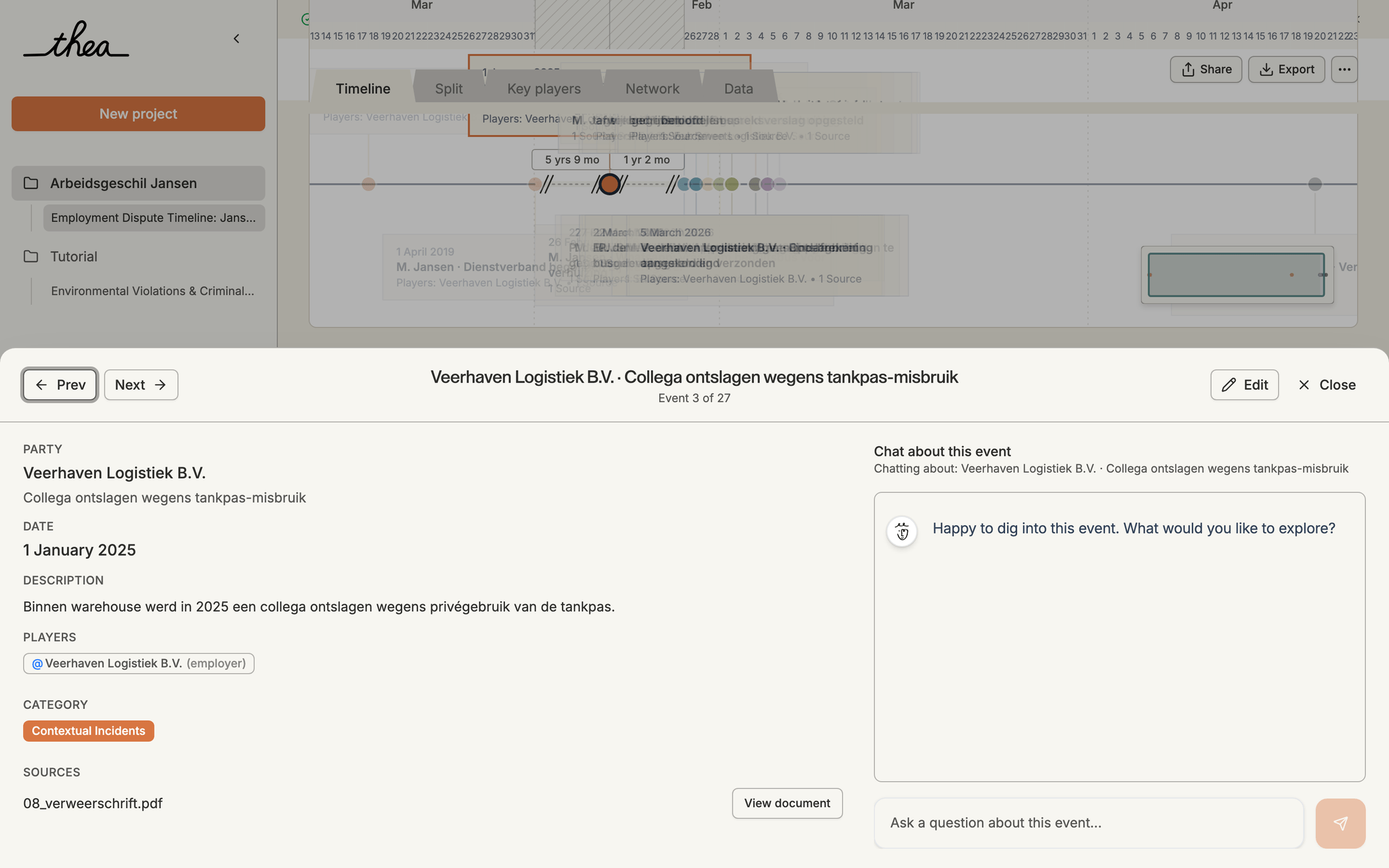
Section titled “Open an event”Click an event on the timeline. A drawer opens at the bottom with:
- the date, the party and the action, and the description;
- the Players involved and the Category;
- the linked Exhibits;
- Sources: the documents the event comes from. Click View document to read one.
Use Prev and Next in the drawer to go to the previous or next event. Click a player to see them in the network.
Each event also has Chat about this event, to ask Thea about that event and its sources.
Edit an event
Section titled “Edit an event”- Open the event and click Edit.
- Change the date, party, action or description, add or remove players (Add), choose a category (Add Category or Change Category) and link exhibits (Add Exhibit). You can only pick players, categories and exhibits that exist; create new ones first.
- Click Save.
If a colleague changed the same event in the meantime, Thea asks whether to Load their version or Overwrite anyway.
Add an event
Section titled “Add an event”Click Add in the toolbar above the timeline (Add Event on a phone, or in the Data tab). Fill in the date, the party, the category, the description and the players, and click Add Event.
Delete an event
Section titled “Delete an event”Open the event, click Edit and then Delete. The event is deleted straight away; to undo it, revert to an earlier version in the Refine panel.