Work with the case file
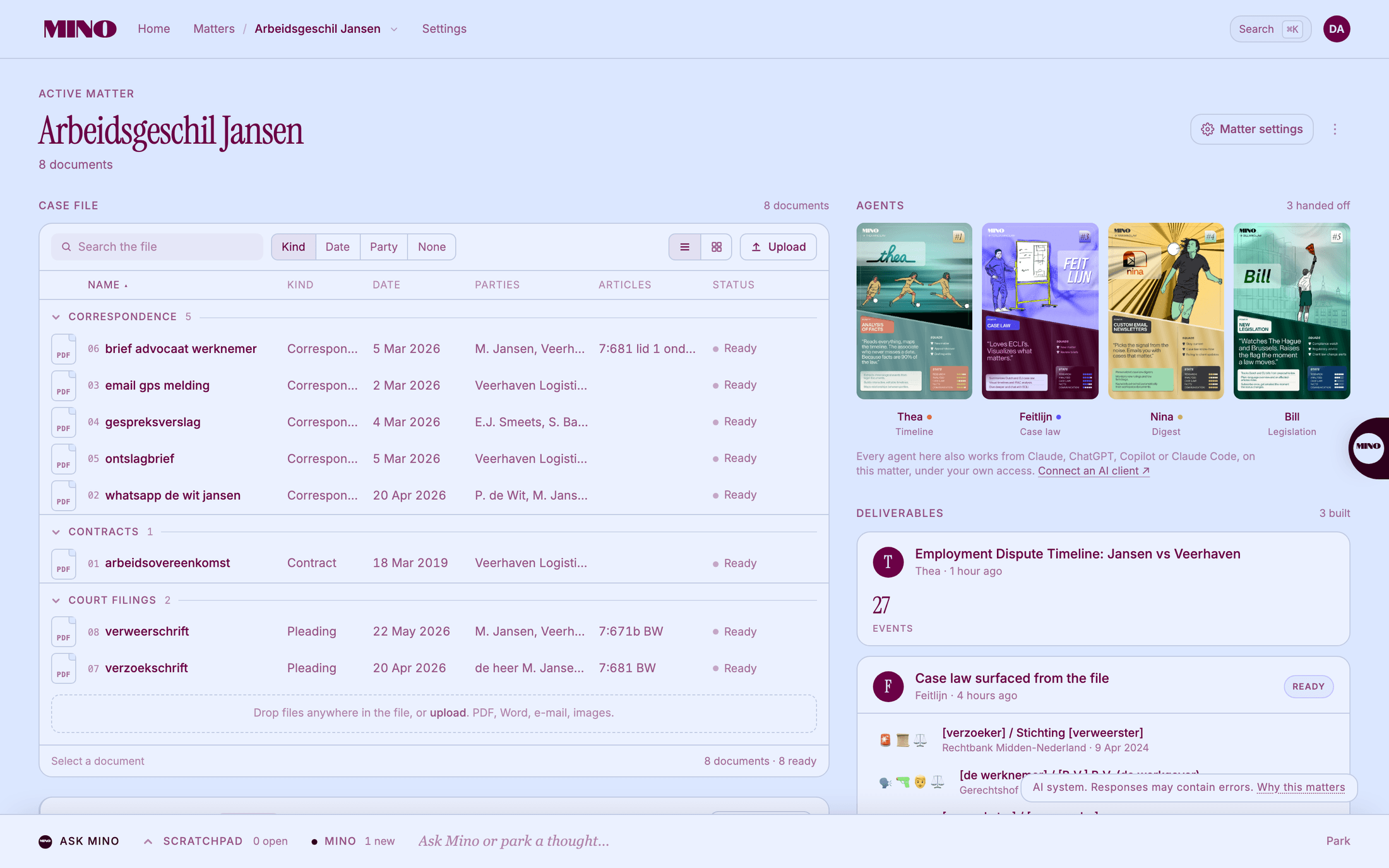
Each matter has one case file. Every agent you use on the matter reads from it, so you upload a document once.
Upload documents
Section titled “Upload documents”Click Upload above the case file, or drop files anywhere on it. You can add several at once.
Mino reads PDF, Word (.docx, .doc), PowerPoint (.pptx), Excel (.xlsx), e-mails (.eml), text, Markdown, CSV, HTML and images (PNG, JPG, WebP, GIF), including scans. A file can be up to 50 MB. Files of another type are skipped.
The first time you upload to a new matter, Mino asks How should Mino handle this matter? Choose Full context or Pseudonymised and click Continue with full context or Continue with pseudonymisation. See Full context or pseudonymised. If you close this question without choosing, nothing is uploaded.
Mino may then ask Before Mino reads this file: who you act for, and in which role. Click Save and upload, or Skip and upload.
What Mino reads from each document
Section titled “What Mino reads from each document”For every document Mino fills in the Kind (a contract, correspondence, a pleading), the Date on the document, the Parties named in it and the Articles of law it cites.
Sort the file the way you work with Kind, Date, Party or None at the top. Date sorts by the date on the document, not the day you uploaded it. Use Search the file to find a document by name.
Document status
Section titled “Document status”| Status | What it means |
|---|---|
| Reading… | Mino is reading the document. Usually under a minute, longer for scans. |
| Pseudonymising… | On a pseudonymised matter: names are being replaced. One to two minutes for a long document. |
| Ready | Read and indexed. Every agent can use it. |
| Needs review | Mino could not tell the kind, date or parties with confidence. The agents can still use it. |
| Could not read | Something went wrong. Click Retry. |
Look at a document
Section titled “Look at a document”Click a document and press Enter (Quick look) to read it without leaving the matter. On a pseudonymised matter, you can switch between the Pseudonymised and Original text there, and check the stand-ins.
To take a document out of the file, select it and click Remove. Work an agent already built from it stays; new runs no longer see it.
Agents and deliverables
Section titled “Agents and deliverables”Agents shows the agents you can use on this matter. A dot after the name marks an agent that already has work here. Click an agent and then Open to continue in that agent, on this matter.
Deliverables lists what the agents built from the file: a Thea timeline, the case law Feitlijn found, a Nina digest. Open a card to continue in the agent. A new deliverable is marked New for a minute.