Get started with Mino
Sign up
Section titled “Sign up”Create an account at app.mino.law. Every Mino account uses two-step login: when you first log in, Mino asks you to link an authenticator app, and from then on you enter a code from that app each time you log in.
A new account starts with a 30-day trial of Mino Pro, without a card. The top bar shows how many days are left. See Your account and plan.
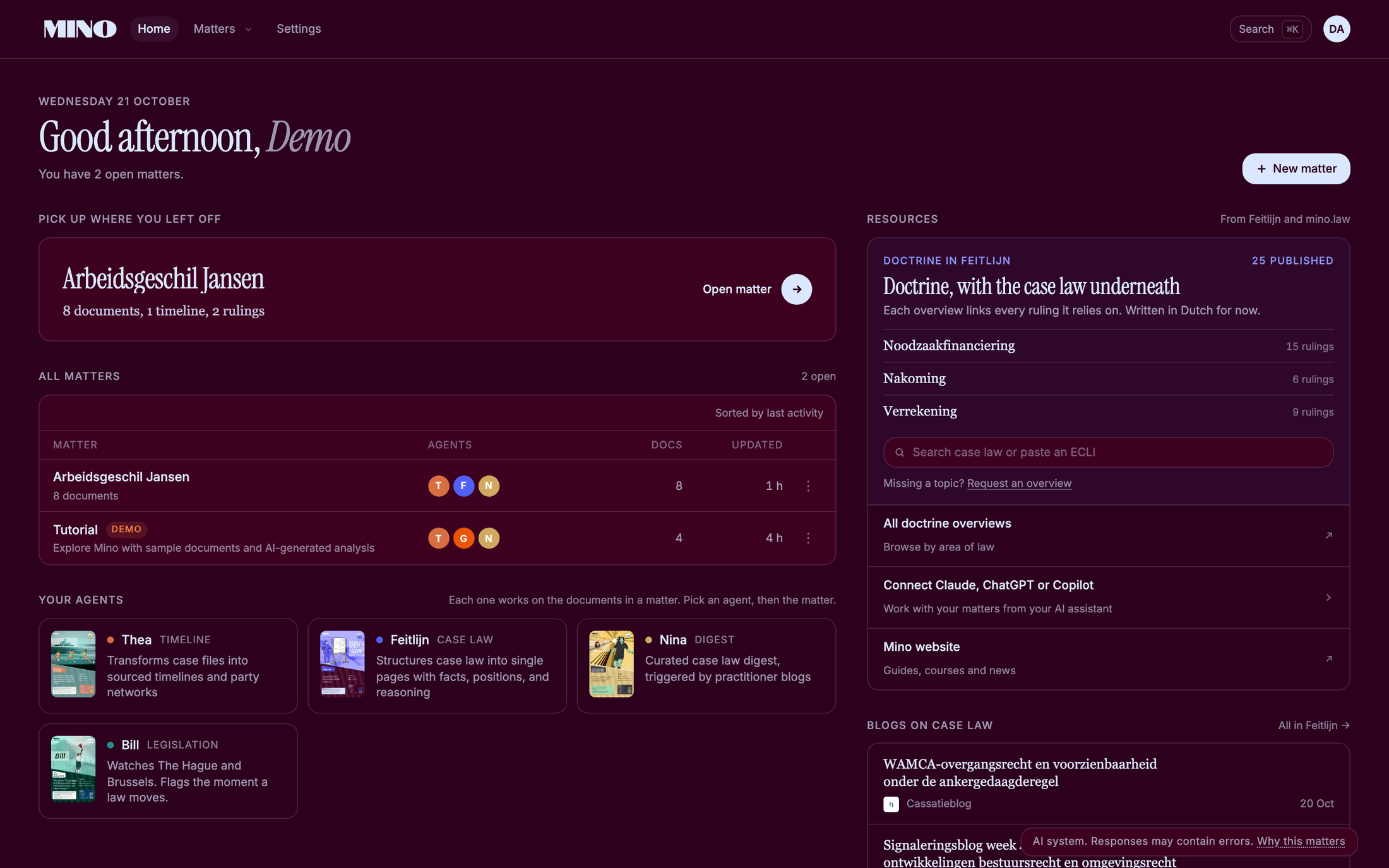
Home shows:
- Pick up where you left off: the matter you opened last, with Open matter. It appears once you have two or more matters.
- All matters: every open matter, sorted by last activity. The coloured letters show which agents have work on it (T for Thea, F for Feitlijn, N for Nina).
- Your agents: pick an agent, then Use on a matter to choose the matter it works on.
- Resources: the newest doctrine overviews in Feitlijn, and a search box to Search case law or paste an ECLI.
- Blogs on case law and What’s new in Mino.
The top bar takes you Home, to Matters (a list of all your matters, with + New matter) and to Settings. Search (⌘K, or Ctrl+K on Windows) finds a matter by name.
The demo matter
Section titled “The demo matter”Your first time in Mino, you find a matter marked Demo on Home. It holds sample documents and work the agents have already done on them, so you can look around before you upload anything of your own. You can remove it from its ⋮ menu with Remove demo.
Create your first matter
Section titled “Create your first matter”- On Home, click New matter.
- Give it a Name, for example “Jansen v. Bakker”, and optionally a Description.
- Mino may ask Who do you act for? and In which role? so it reads the file from your side. You can skip both.
- Click Create matter.
The matter opens straight away. Upload the documents next: see Work with the case file.
Rename, archive or delete a matter
Section titled “Rename, archive or delete a matter”Open the ⋮ menu next to a matter (on Home, or at the top of the matter):
- Rename matter
- Archive matter puts it away; documents and deliverables stay, and you can restore it from All matters.
- Delete matter removes it permanently. Only the owner can delete. Archive instead if you may need it later.