Connect Claude, ChatGPT or Copilot to Mino
With Mino MCP, your AI assistant can work with your matters: read the case file, the timelines and the case law you saved, and start agent work where you allow it. It sees your matters under your own access, nothing more. Connecting AI apps is part of Mino Pro.
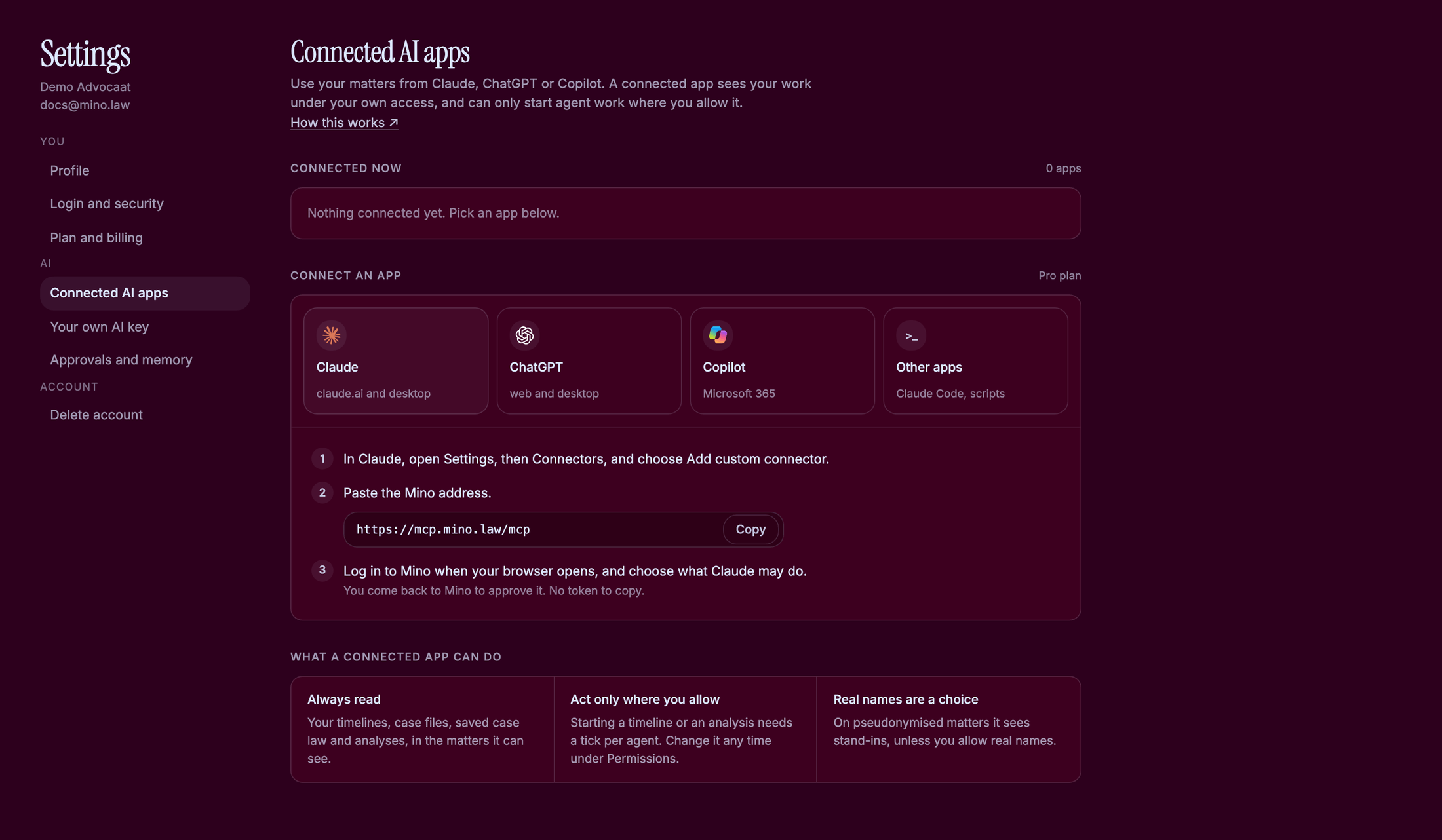
Connect Claude or ChatGPT
Section titled “Connect Claude or ChatGPT”- In Mino, open Settings and click Connected AI apps.
- Under Connect an app, click Claude or ChatGPT and follow the steps. In Claude: open Settings, then Connectors, and choose Add custom connector.
- Paste the Mino address:
https://mcp.mino.law/mcp. - Your browser opens Mino. Log in, choose which matters the app may use and what it may do, and click Approve.
There is no token to copy.
Copilot
Section titled “Copilot”Click Copilot under Connect an app and follow the steps. Your IT admin may need to allow Mino in Microsoft 365 first.
Claude Code and other apps
Section titled “Claude Code and other apps”Click Other apps to create a token. Give it a Name, choose Which matters it may use and what it may do, and create it. Mino shows the token once, with a ready-made command for Claude Code: copy it straight away.
What a connected app can do
Section titled “What a connected app can do”- Always read: your timelines, case files, saved case law and analyses, in the matters it can see.
- Act only where you allow: starting a timeline or an analysis needs a tick per agent.
- Real names are a choice: on pseudonymised matters the app sees stand-ins, unless you allow real names.
Change or disconnect
Section titled “Change or disconnect”Under Connected now you see every connected app, which matters it can use, and what it may do. Click Permissions to change that, or Disconnect to remove it.
Related
Section titled “Related”- Mino MCP: what it is and which apps work with it
- Full context or pseudonymised
- The scratchpad and Ask Mino