Draw your first chart
From an empty matter to a first chart in a few minutes.
Create a matter
Section titled “Create a matter”- Open Lucy and click New matter (the first time, name it right away under “Name the matter”).
- Type a name, for example “Project Mast”, and click Create.
The matter is also a Mino matter, so you see it in the Mino dashboard and the other agents too.
Lucy can’t draw charts on a pseudonymised matter yet. If you start one there, Lucy stops before anything is sent to the AI model. Use a matter on full context for structure charts; see Pseudonymisation at Mino.
Upload the documents
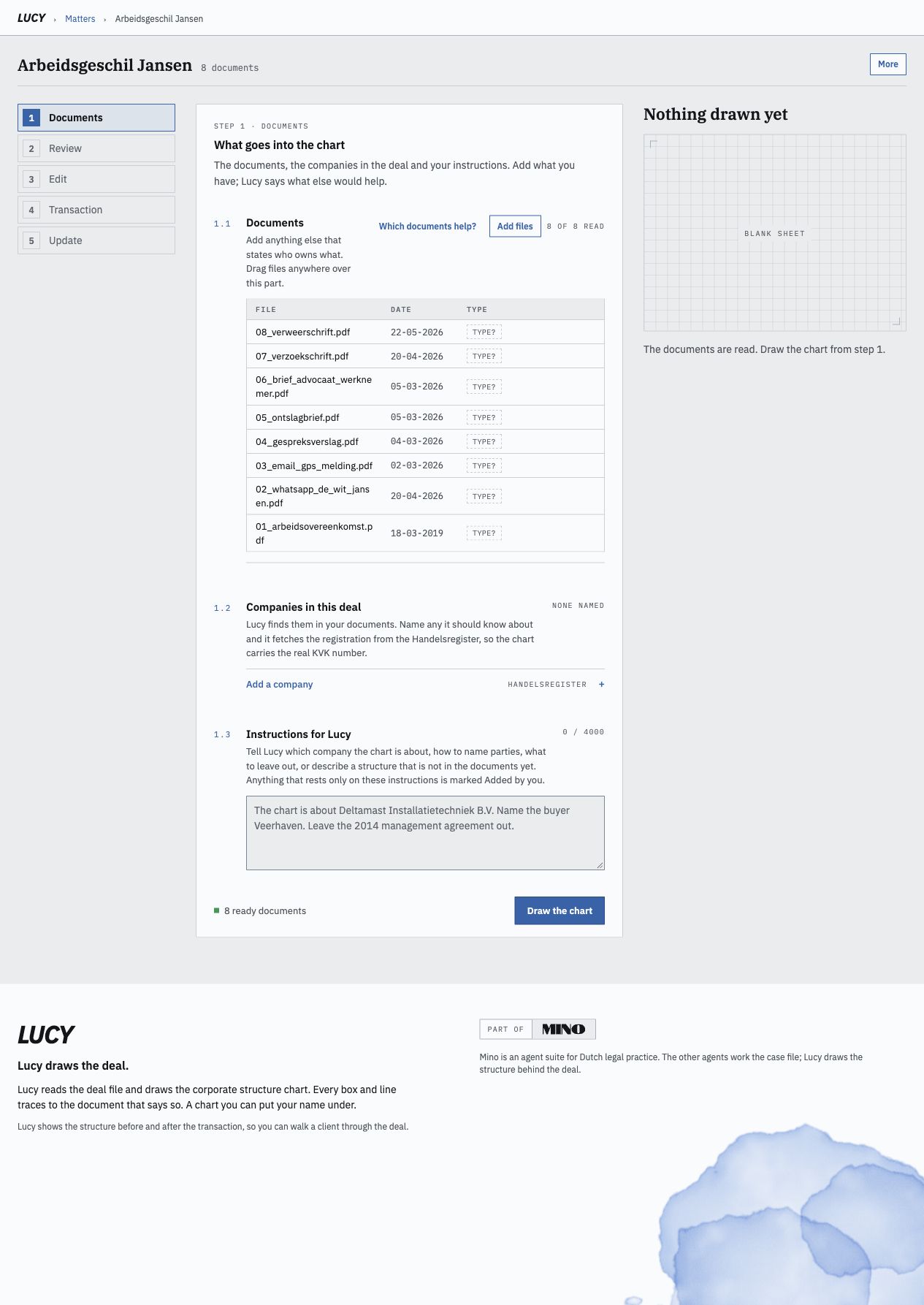
Section titled “Upload the documents”- Under Documents, drop the deal documents on the upload area or click Choose files. If the matter already has documents, click Add files. Shareholders’ registers, deeds, emails and spreadsheets are useful; PDF, Word, text, email (.eml), Excel and CSV files work.
- Each file is processed before Lucy can read it. Wait until the document counter shows that all files have been read.
- Lucy guesses each document’s type, such as aandeelhoudersregister. Click the type to correct it.
Under the table, Lucy says what kind of deal this looks like and which documents would improve the result. Which documents help? lists the documents Lucy works with and which you have.
A file Lucy can’t read appears under Could not be read. Upload a better copy with Upload replacement, or click Mark not obtainable.
Tell Lucy what to focus on (optional)
Section titled “Tell Lucy what to focus on (optional)”Under Instructions for Lucy, write what the chart is about, for example: “The chart is about Deltamast Installatietechniek B.V. Name the buyer Veerhaven. Leave the 2014 management agreement out.” Your text is saved automatically.
You can also add the companies in the deal from the Handelsregister first; see Check companies against the Handelsregister.
Draw the chart
Section titled “Draw the chart”Click Draw the chart. Drawing usually takes about a minute. When it’s done, the chart appears on the right; click Open the chart to work on it.
Delete a matter
Section titled “Delete a matter”The menu next to the matter name has Delete matter. Click it twice to confirm: Confirm delete matter. Because a Lucy matter is a Mino matter, this deletes its documents and charts for every Mino agent, not only in Lucy. To put a matter away without losing it, archive it in the Mino dashboard instead.